
These instructions are for renewing the following Plumbing & Mechanical Systems Board (PMSB) licenses:
- Apprentice
- Journey
- Master
- Specialty
Renewing online is the fastest way to get your license.
Before You Start Your Renewal:
Continuing Education Certificates
The PMSB does not keep track of your CEU certificates. Your application may be selected for an audit. If audited, you must submit your CEU certificates.
If you do not have a copy of your CEU certificate(s), contact your CEU provider.
Your CEU certificates should have the following information:
- Course Name
- Course Number
- Course Date
- Hour Credits
Medical Gas Installers:
Save your medical gas piping and brazer certifications to your PC before you start.
Clear photographs of your physical documents are acceptable.
You will enter your certificate info and attach your certificates during your application.
Other CEU information
Visit the PMSB Continuing Education page for more information.
Multiple License Discount
You can be eligible for a 30% discount if you renew two or more PMSB active licenses.
You must complete all license renewals on the same day to qualify for the discount.
For Applicants Who Also Hold a Contractor License:
- Start with your Contractor License renewal to qualify for the discount. If you start here with your individual license renewal, you will not qualify for the discount.
- Stop when you are asked to pay the Contractor renewal fees.
- Start your individual license renewal(s).
- Pay the individual license renewal fee(s).
- Return to your Contractor application and pay the renewal fees.
For help with your Contractor license, visit the How do I Renew a PMSB Contractor License page.
For Applicants with Multiple Disciplines:
Make sure you renew every trade you want to keep active at the same time. If you renew these licenses separately, you will pay the full price for each one.
Additional License Discount Info:
The discount does not apply to the following:
- Late fees
- Contractor Registration fees (separate from your Contractor License fee)
Our team is unable to fix fee errors if the renewal steps were not followed correctly.
Fees cannot be refunded once they are paid.
Account Setup & Logging In
Access the licensing portal login page.
Need to create an account? Click New User Registration on the online licensing portal home page.
This website displays best on a desktop or laptop. There are known issues with the Safari web browser.
Forgot ID?
Use the Forgot ID button on the login page to start the recovery process.
Enter the email address you used to create your Enterprise A&A account.
Click Retrieve Id.
If you can't recover your user ID, contact the 24/7 help desk at 515.281.5703. Let them know you need help with your Enterprise A&A account login.
Forgot Password?
Click Forgot Password on the login page to start the recovery process.
Enter your user ID. Your user ID ends with '@IowaID'.
Click Retrieve Password.
Answer your security (baseline) questions. Click Continue.
Create and confirm your new password.
Sign in with your A&A ID and new password. After signing in, you will be taken to the DIAL & HHS Public home page, where you will need to sign in again.
If you cannot answer your security (baseline) questions, use the link at the bottom of the page to reset them.
If you can't reset your security questions, contact the 24/7 help desk at 515.281.5703. Let them know you need help with your Enterprise A&A account login.
If you get a temporary password, use it on the Enterprise A&A login page. Do not use temporary passwords on the DIAL & HHS Public Health licensing portal.
Start Your Individual Renewal
- After you sign in to the online licensing system, you will be taken to the My Profile page.
- Personal Licenses is selected by default. Leave this option selected.

- Verify that your information under Basic Profile Details is up to date. Update any out-of-date information. Your license will be sent to the email address on your profile.
- Click Continue when you finish updating your information. This will save your changes. You will be taken to the My Licenses, Permits, & Programs page.

- Locate your license number and click the Renew button that is in that row. Click OK on the pop-up. You will be taken to the Application Form.
- You may need to scroll the license row to the left.
- This Renew button changes to an Edit button if you leave your application and come back to it.
Individual Renewal Application Form - Affirmation
The Application Form should say Plumbing and Mechanical Systems - Individual License.

If it does not, you are in the wrong application form. Return to the My Licenses, Permits, & Programs page. Click Renew or Edit on the row with your license number.
Answer the six Yes/No questions under Affirmation.

- If you answer Yes, you need to explain why in the box below your answer.
- You must upload the documents requested for each question you answer Yes to. If you miss any, your renewal may be delayed. You can upload your documents under the Attachments section.
Individual Renewal Continuing Education - Not Exempt from CEUs
This step applies if you took CEUs to renew. If you are exempt from CEUs, skip to the next step.
- Answer: Yes to 'Have you met your continuing education renewal requirements?'

- Skip the 'If Exempt, Please select your exemption' section.
- Enter your total of in-person and online (if applicable) CEU hours in the fields below. The total number of CEU hours is as follows:
- Single License: 8 hours
- Multiple Mechanical licenses: 14 hours
- Multiple licenses (Plumbing & Mechanical) 16 hours
At least half of your CEU hours need to be in-person. If you didn't take online CEUs, leave that field blank.
Visit the PMSB Continuing Education & Training page for detailed CEU requirements.
Individual Renewal Continuing Education - Exempt From CEUs
This step applies if you are exempt from the CEU requirement. If you are not exempt, make sure you have your CEU hours entered. Then skip to the next step.
- Answer: I am Exempt to 'Have you met your continuing education renewal requirements?'

- Select your exemption under 'If Exempt, please select your exemption.'
- You may need to scroll down on this dropdown list to view your exemption option.
Visit the PMSB Continuing Education & Training page to learn more about CEU exemptions.
The table below explains the exemption codes and requirements:
| Exemption Code: | Exemption Requirements: | Required Attachments for Exemption: |
|---|---|---|
| 1001 | You are a government employee You are working in the licensee specialty You are assigned to duty outside the US |
|
| 1002 | You live in another state That state has continuing education requirements for its license You have met all continuing education requirements of that state |
|
| 1003 | You were licensed as an Apprentice in Iowa You obtained your Journeyperson license after passing an exam This is your first renewal for your Journey license | None |
| 1004 | You were absent from the state You engaged in active practice as approved by the board |
|
| 1005 | You served active duty in the military This active duty was during the current licensing period. |
|
| 1006 | You received your PMSB license for the first time Your license was issued with less than one year remaining | None |
| 1007 | You are renewing an apprentice license |
|
| 1008 | Are reinstating your license (license lapsed for more than one year) Have passed that license's exam instead of taking CEUs for your reinstatement | None |
Individual Renewal Application Form Details - License Select
Under Application Form Details, click License Select to expand this section if it is collapsed.

You will see the list of your licenses. You may need to use the scroll bar to navigate left and right in these license rows.
Do not change the License Type or Trade/Specialty dropdowns for your current licenses.
Action Requested
Use the Action Requested dropdown to select an action for each row.

- Choose Renew to renew the license.
- Choose Do not Renew if you are not renewing that license.
- This typically applies to the following licenses:
- Specialty: You received an Apprentice or Journey license in that trade/discipline.
- Apprentice: You received your Journey license.
- Journey: You received your Master's license in that trade/discipline.
- HVAC/R and Hydronics: You are combining these licenses into a Mechanical license.
- This typically applies to the following licenses:
- Choose Renew License as Inactive if you are deactivating your license.
- You can't practice with a deactivated license.
- You must take CEUs to maintain this deactivated license.
Basis for Licensure
Use the Basis for Licensure dropdown to choose how you are renewing your license.
The Renewal option is preselected. This is the most common option for renewing your license.

- Leave the Renewal options if you have:
- Taken CEUs for your renewal, OR
- Claimed an exemption for CEUs under the Exemptions section.
- Choose Examination if you are renewing by taking that license's exam.
- Applies only to licenses that have lapsed for more than 1 year.
Activate Inactive Master/Inactivate Master (Optional)
This section applies to the Master or Active Journeyperson/Inactive Master License Type.
Skip this section if you are not changing your Master License Type to or from Active Journeyperson/Inactive Master.
To make this change, follow the How Do I Change to or from My Active Journey Person/Inactive Master instruction document (363.43 KB) .pdf .
- An Active Journeyperson/Inactive Master is used to practice at a Journey level while retaining your Master level license.
- You can't serve as a Master of Record with an Active Journeyperson/Inactive Master License Type.
Combine to Mechanical (Optional)
This section applies to licensees who hold an HVAC/R and Hydronics license.
- You can combine your HVAC/R and Hydronics licenses into a single Mechanical license. These licenses must be the same type (Journey or Master).
- You can only combine licenses during the renewal window. The renewal window is May 1 - June 30 in the last year of the licensing period.
- A single Mechanical license allows you to practice the following trades:
- HVAC/R
- Hydronics
- Sheet Metal
- You must have 14 hours of CEUs to combine these licenses.
- Select Do Not Renew in the HVAC/R and Hydronics license rows

- Click Add to create a new license row.

- In the new license row you created, choose these dropdown options:
- License Type: Journey or Master (same as your HVAC/R and Hydronics licenses)
- Trade/Specialty: Mechanical
- Action Requested:
- Renew (if you want an active Mechanical license)
- Renew as Inactive (if you want an inactive Mechanical license)
- You can't practice with an inactive license
- You must take CEUs to maintain the inactive license
- Basis for Licensure: Combine to Mechanical
After combining your HVAC and Hydronics licenses, you will need 8 hours of CEUs for your next renewal.
Complete the License Select Section
Click Save when you have filled out the License Select dropdowns.
If you receive an error, please review your License Select dropdown selections.
Individual Renewal Upload Attachments
Upload your renewal documents under the Attachments section.
Required uploads include:
- Exemption documents (If it's required by your exemption claim)
- Clear photographs of physical documents are acceptable.
- See the CEU exemption step for more info.
- Documents for any Yes answer under the Affirmation section
- This can include:
- Court documents
- Formal disciplinary documents
- Medical documents
- This does not include:
- Public records, such as Iowa Courts Online.
- This can include:
- Medical gas piping and brazer certifications (Applies only to the Medical Gas System Installer license Type)
- Click Add New Attachment.
- Click the Type dropdown. Select the type of document you're uploading.
- If your document type isn't listed, select Word Merge.
- Enter a Description for your file.
- Click Choose. This will open a prompt to locate your file. Select your file.
- Repeat steps 1-4 for each attachment you need to submit.
- Click Upload Attachments.
- Your uploads aren't saved unless you click Upload Attachments.
- After you click Upload Attachments, your uploads can't be removed from your application.
Individual Renewal Application Form Supplemental
You will complete one Application Form Supplemental page for each of your licenses.
Journey, Master, & Specialty Licenses:
This section applies if your Process Description says:
- Journeyperson
- Master
- Hearth Systems - HVAC/R
- Private School or College Routine Maintenance
- Disconnect/Reconnect Plumbing Technician
- Service Technician HVAC
- Skip to the bottom of this page.
- Click Continue. Click OK on the pop-up.
- If you have more than one license, you will be taken to the next Application Form Supplemental page. This process will repeat for each of your licenses.
Apprentice Licenses:
This section applies if your Process Description says Apprentice.
Skip this section if you are not renewing an Apprentice license.

- Go to the Apprenticeship Details section.
- Update any apprenticeship details that have changed.
- Each field must be populated.
- Skip the Fee Waiver Request section.
- Click Continue at the bottom of this page. Click OK on the pop-up.
- If you have more than one license, you will be taken to the next Application Form Supplemental page. This process will repeat for each of your licenses.
Medical Gas Systems Installers:
This section applies if your Process Description says Medical Gas System Installer - Medical Gas Pipe.
Skip this section if you are not renewing a Medical Gas System Installer license.

- Go to the Medical Gas Systems Installer Details section. Update any out-of-date information.
- Each field must be populated.
- Each Yes/No question must be answered.
- Skip the Fee Waiver Request section.
- Click Continue at the bottom of this page. Click OK on the pop-up.
- If you have more than one license, you will be taken to the next Application Form Supplemental page. This process will repeat for each of your licenses.
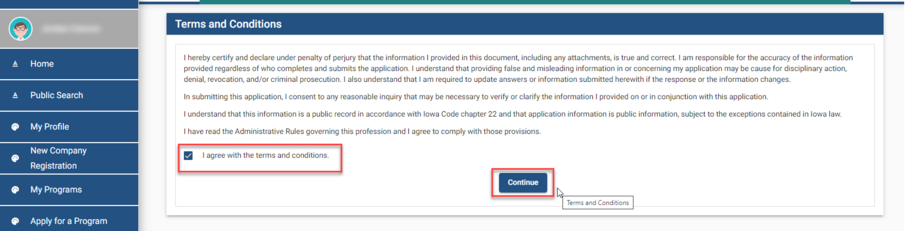
Terms and Conditions | DIAL & HHS Public Health
- Check the I agree with the terms and conditions box.
- Click Continue and then OK on the pop-up.
Make a Payment | DIAL & HHS Public Health
- You can pay for your application now with a credit card or bank account.
- You can also pay for your application by mailing a check or money order.
- Your application is only finished after you make a payment.
- Our staff does not get an alert for unpaid applications.
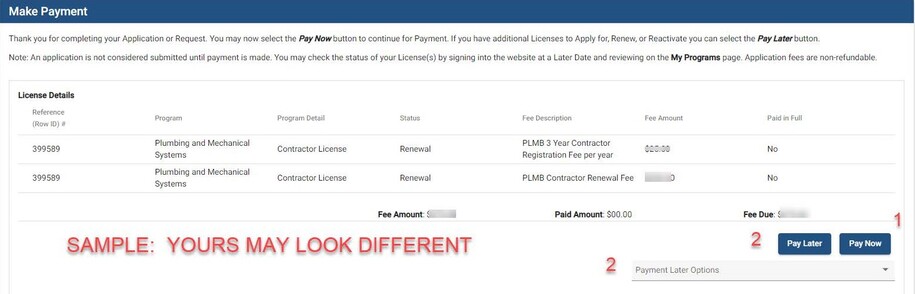
Option 1 - Pay Online
- Click Pay Now on the first payment screen.
- On the second payment screen, click Pay Now. You will be taken to the Make a Payment screen.
- Review the contact information. This section is filled in for you using info from your My Profile page.
- Scroll down and select your payment method.
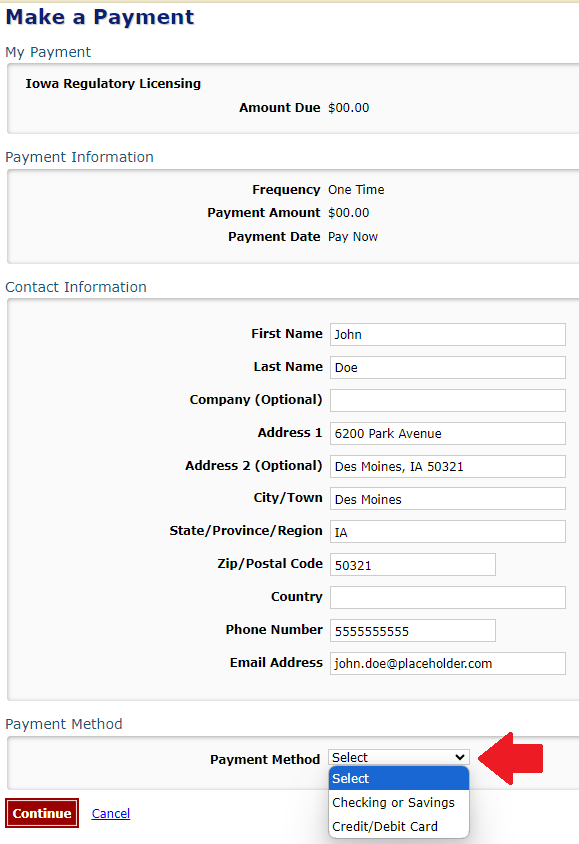
- Use the 'Payment Method' dropdown to select Checking or Savings or Credit/Debit Card.
- Enter your payment details.
- If you choose 'Checking or Savings,' please make sure your account number is right.
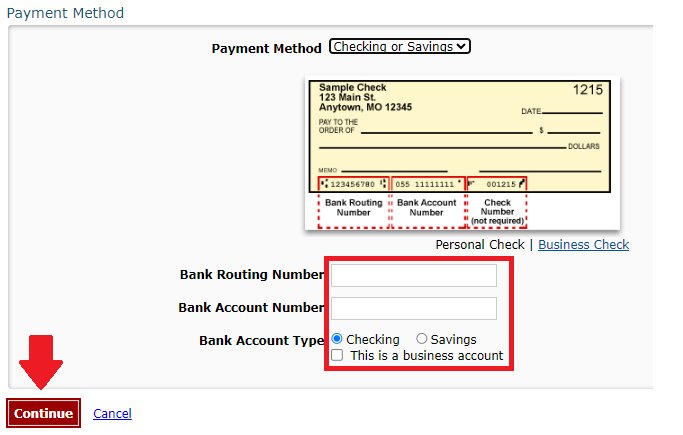
- Click Continue and then confirm the payment.
You will receive an email confirmation of your payment.
Option 2 - Pay Later
This option is used if you are mailing a check or money order.
- Use the Pay Later Options dropdown to select Check.
- You will be taken to the Programs page.
- Click on the Details button.
- Scroll down to the Payment section and click Print Bill.
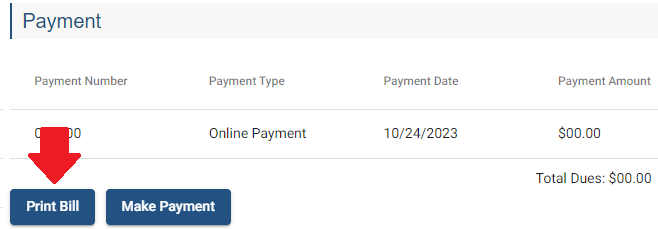
Your bill must be included with a mailed-in check or money order.
Mail your check or money order to the address on the printed bill.
Do not send cash in the mail.
What to Expect After You Submit Your Application
Applications are generally processed within 4–6 weeks. Applications requiring committee or board review need additional time for processing.
Once you submit your application or renewal, you will receive a confirmation email.
Program Staff Information Requests
PMSB staff may contact you if more information is needed. Please reply promptly to avoid delays.
Method of Contact
Please ensure your contact information is up to date.
PMSB staff sends requests from pmsb@dia.iowa.gov to the email addresses listed in your profiles:
- My Profile: Used for individual licenses.
- Update this email by changing it on your My Profile page. Click Continue to save this change.
- Company Profile: Used for contractor licenses.
- Update your Company Profile email by contacting the PMSB staff at pmsb@dia.iowa.gov. Provide the company name, the last four digits of the company profile's Tax ID/EIN/SSN, and your new email.
It is your responsibility to make sure the email on your profile or your company is up to date.
Audits
If audited, be prepared to submit your CEU certificates. Clear photographs of your certificates are accepted.
Your CEU certificates should have the following information:
- Course Name
- Course Number
- Course Date
- Hour Credits (Safety, Code, or Discipline)
Response Deadlines
You have 90 days to respond to a PMSB staff request for additional information. If we do not receive a response in 90 days, your application will become invalid. Any paid fees will be forfeited.
View Your Application Status
You can view the status of your PMSB application by following these steps:
- Sign in to the DIAL & HHS Public Health licensing system. Choose an option under Select a Membership for your Actions.
- Choose Personal Licenses to view your individual licenses.
- Choose your business profile's name to view your company's licenses.
- Click Continue. You will see a list of your current applications with the following columns:
- Program: PMSB licenses will say Plumbing and Mechanical Systems.
- Status: New or Renewal means the application hasn't been processed yet. View the Payment Details to confirm the application is complete. Unpaid applications aren't complete.
- Status: Ready to Issue means your application is processed. Your digital license will be emailed to you in the next few days.
- Issue Date: This is the date your most recent application was processed for that license.
- Expiry Date: This is your license's expiration date. When your application is approved, you will get a new Expiry Date.
- Details:
- A Details button will take you to your application Details page. You can pay outstanding fees and view your license documents on this page.
- An Edit button means the application was started, but it's incomplete. Click Edit to resume this application.
View Payment Details
Applications are only sent to PMSB staff for review after payment is made.
To verify your application is paid:
- Sign in to the DIAL & HHS Public Health licensing system. Choose an option under Select a Membership for your Actions.
- Choose Personal Licenses to view your individual licenses.
- Choose your business profile's name to view your company's licenses.
- Click Continue. You will see a list of your current applications.
- Click Details.
- Scroll down to the Fees section.
- Under the Payment column, check the Total Dues. If the Total Dues are $0.00, then no payment is due.
- Click the Make Payment button to pay an outstanding fee.
Do not submit a second payment if your bank shows that the Total Dues amount has already been paid. These issues typically resolve in a few business days.
If the issue does not resolve in a few business days, contact our PMSB team at pmsb@dia.iowa.gov. Provide your payment confirmation number (starts with IOWDI5).
View Your License Documents
PMSB licenses are digital and will not be mailed. Your digital license document is emailed within 1-2 days after it is processed.
You can view and print your license online by following these steps:
- Sign in to the DIAL & HHS Public Health licensing system. Choose an option under Select a Membership for your Actions.
- Choose Personal Licenses to view your individual licenses.
- Choose your business profile's name to view your company's licenses.
- Click Continue. You will see a list of your current applications.
- Click the Details button.
- Scroll down to the Attachments section.
- Your license documents are under the Attachments section. Click View to download your license.
Your 5 most recent licenses are displayed under Attachments. Use the Items per page dropdown to adjust how many license documents are shown.